You can create or link PSA opportunities directly from an initiative. This keeps your PSA opportunities and initiatives connected, ensuring both systems stay up to date with less manual effort.
This article will guide you through the steps of creating and linking PSA opportunities to initiatives in Lifecycle Manager.
What you'll need
- An active integration with one of the following PSA tools:
- ConnectWise Manage
- Autotask
- Halo PSA
Note
Opportunities can take 24-48 hours to sync and will display a Pending status until completed. If your Opportunities have not updated after 48 hours, reach out to our support team.
Accessing initiatives to create or link opportunities
You can create or link PSA opportunities directly from an initiative on a client's Roadmap.
- Log in to Lifecycle Manager.
-
Navigate to the clients page by clicking Home in the top navigation bar.
-
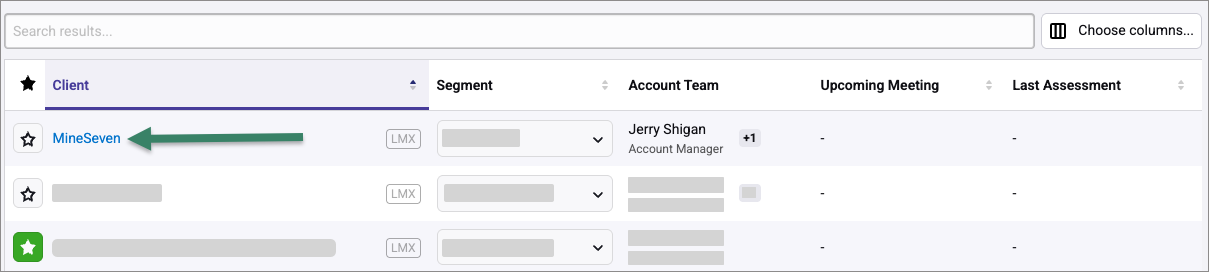
Click the name of the client for whom you want to create an opportunity.
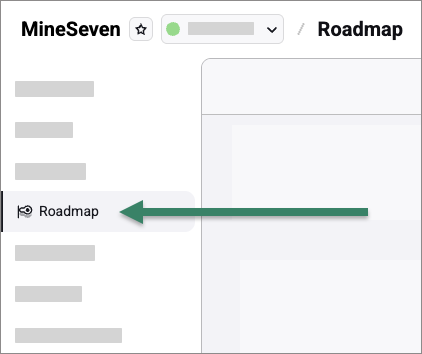
- Click Roadmap from the left navigation bar to view the client's initiatives.
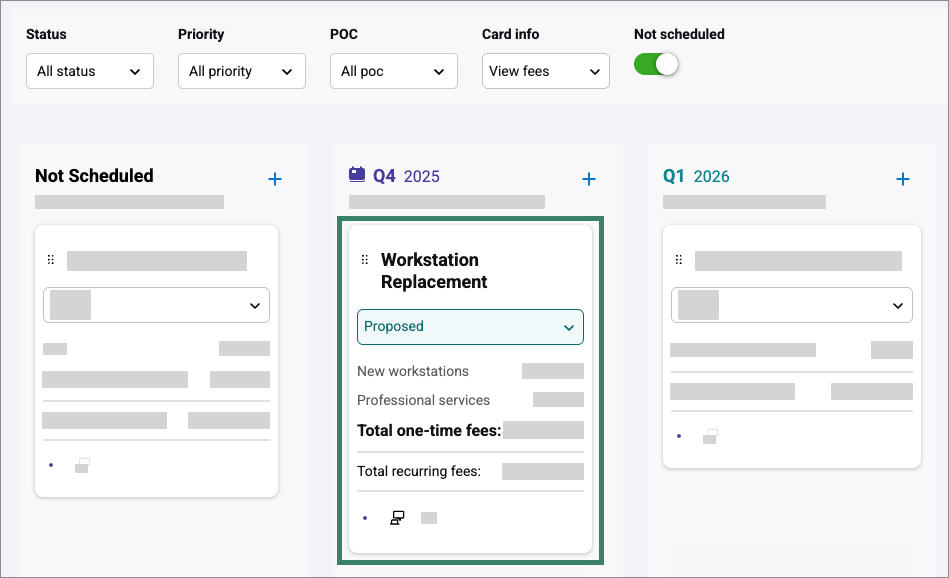
- Click an initiative to open the Initiative details modal.
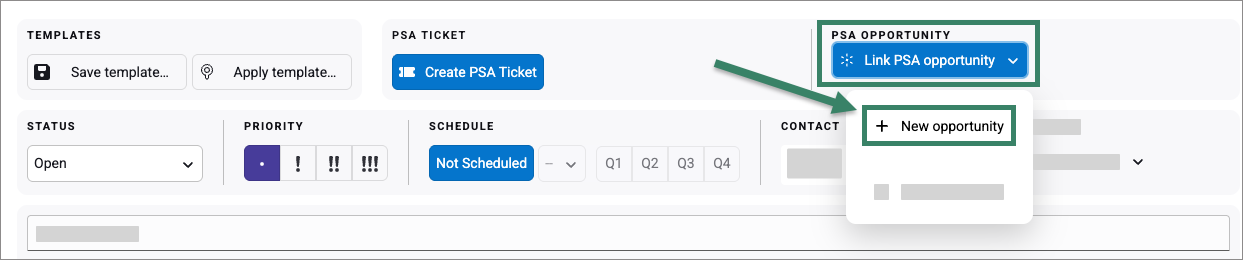
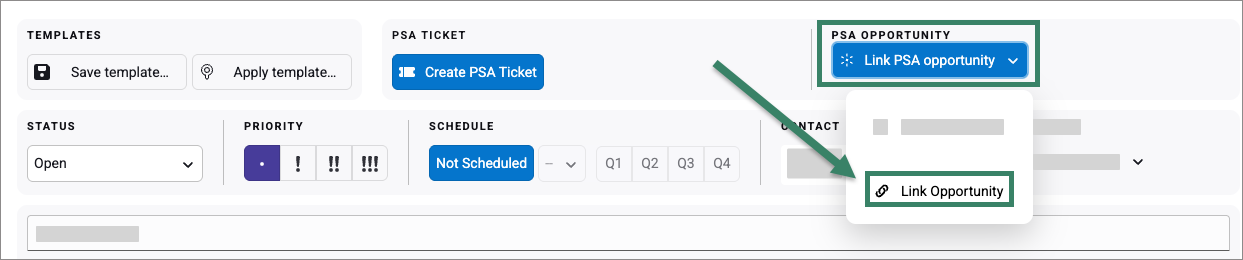
- Click Link PSA opportunity.

Choose an option below for further details on creating, or linking opportunities.
Creating PSA opportunities from an initiative
- From the Link PSA opportunity dropdown, select + New opportunity
 2. Enter the details for the new opportunity.
Fields may vary depending on your connected PSA. The screenshot below shows the details required for a Halo PSA integration:
- Name - Enter a name for the opportunity.
- Contact - Enter the email address of a client contact to associate this opportunity with.
- Assigned Agent - Enter the email address of the team member to associate this opportunity with.
- Type - Select the opportunity type from the dropdown.
- Status - Choose the opportunity status from the dropdown.
- Description - Enter a description for the opportunity.
- Estimated Close Date - Enter an estimated date for this opportunity to be completed by.
- Click Save.
A message will let you know that the new opportunity is pending. Once the sync has completed, the connection will be finished and you will see the opportunity name and status in the upper right of the initiative:
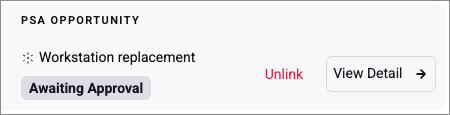
- Click Unlink to stop the sync between this initiative and the opportunity.
- Click View Detail to open the opportunity in your PSA.
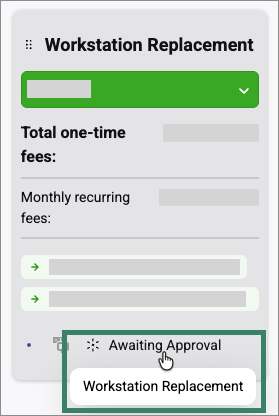
The Opportunity icon and status will also appear on the initiative tile when viewing the roadmap. Hover over the status to see the Opportunity name:
Linking an existing PSA opportunity to an initiative
- Click Link Opportunity from the dropdown.
- Use the search bar to filter the opportunities synced from your PSA, then click the radio button to select one. (Note that Opportunities can take up to 48 hours to sync from your PSA).
- Click Link.
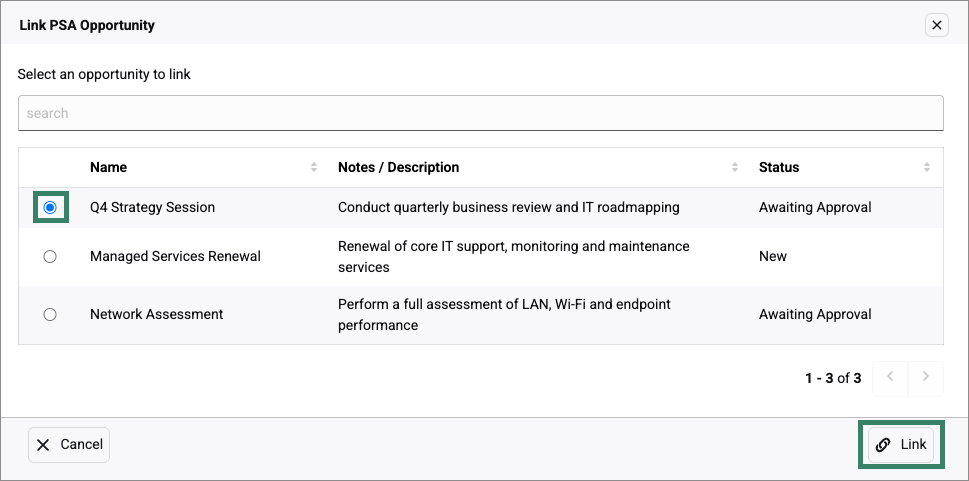
The opportunity will show a Pending status until the sync completes 4. Click Save changes on the initiative screen to confirm the link.
A message will let you know that the link is pending. Once the sync has completed, the connection will be finished and you will see the opportunity name and status in the upper right of the initiative:
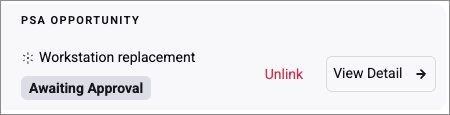
- Click Unlink to stop the sync between this initiative and the opportunity.
- Click View Detail to open the opportunity in your PSA.
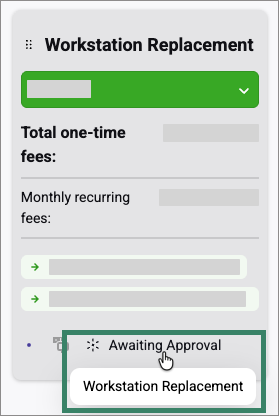
The Opportunity icon and status will also appear on the initiative tile when viewing the roadmap. Hover over the status to see the opportunity name:
Financial sync to ConnectWise Manage Opportunity Forecast Items (ConnectWise Manage Only)
Note
This applies only to ConnectWise Manage and not to Autotask or Halo PSA.
When you link an Initiative to a ConnectWise Manage Opportunity, Lifecycle Manager automatically syncs the Initiative's budget line items to Opportunity Forecast Items in ConnectWise Manage. Opportunity Line Items are the revenue and cost line items attached to a ConnectWise Manage Opportunity.
You don't need to re-enter financial data in ConnectWise Manage. The sync runs automatically once the opportunity is linked. Data flows from Lifecycle Manager to ConnectWise Manage only.
Here's how initiative fees map to Forecast Items:
- One-time fee Creates a non-recurring Service item with a quantity of 1. Revenue and cost are pulled from the Initiative.
- Monthly recurring fees Creates a recurring item with a monthly billing cycle. Revenue, cost, start and end dates are pulled from the Initiative.
- Yearly recurring fees Creates a recurring item with a yearly billing cycle. Revenue, cost, start and end dates are pulled from the Initiative.
After following the above guide, your initiative will be connected to a PSA opportunity, keeping your client roadmap and PSA aligned with minimal manual work.
Any questions?
Reach out to our Lifecycle Manager support team by submitting a support ticket.
:sparkles: NEW :sparkles: Join our MSP Power-Ups
Free 15-minute micro-workshops + live Q&A with our Lifecycle Manager experts. Sign up here to reserve your spot.