Merging clients in Lifecycle Manager lets you combine multiple client records into a single record. When you merge clients, the assets, reports, and account data from the merged records roll up under a single parent client.
This is useful when the same client appears under different names across your integrations, when an integration creates duplicate records, or when you want to consolidate related clients into a single view.
This article covers how to merge, rename, and unlink clients.
Note
Merging a client doesn't delete the linked record. The linked client becomes a child of the parent, and its data is combined with the parent.
You can unlink it at any time to restore it.
Note
If a known client is not available to merge, check whether your Lifecycle Manager User account has access to view that client.
Merging clients
There are two places to merge clients in Lifecycle Manager:
- Merge Clients on an individual client's settings page, for working with one client at a time.
- Client Settings under Account Settings, for working across your whole account.
Both methods produce the same result.
Merging from a client's Merge Clients page
- In Lifecycle Manager, click Home in the top navigation bar to view the Clients List.
- Select the client you want to use as the parent.
- On the client's profile page, click Settings. This takes you to the settings page for that client.

- In the left navigation panel of the client's settings page, click Merge Clients.

- In the Merge clients section, search for the client you want to link to the parent.
- Click the name of the client you want to link.
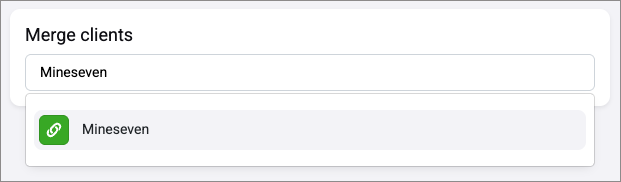
- Repeat steps 5&6 if you want to merge multiple clients.
- Click Merge Selected.
- In the confirmation modal, click Apply to confirm.
Merging from Client Settings
- In Lifecycle Manager, hover over the settings icon (
 ) in the upper right of the screen and click Account Settings.
 - In the left navigation menu, click Client Settings.

- Find the client you want to use as the parent and click the context menu icon (
 ) in its row.
 - Click Merge another Client.
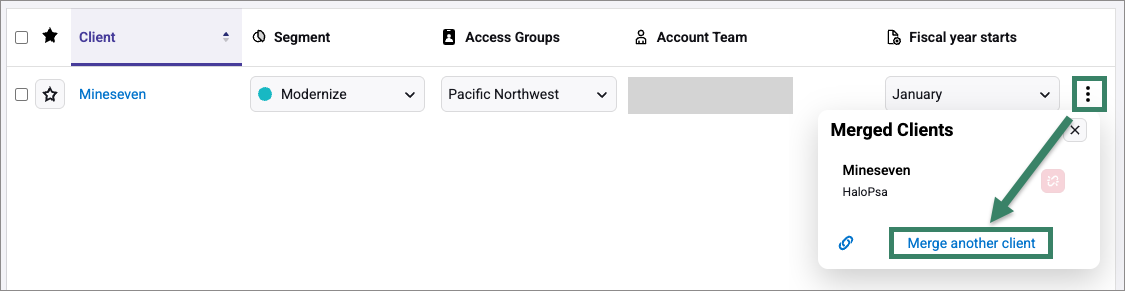
- Search for the client you want to link to the parent. - The integration each client is syncing from is shown next to their name to help you identify the correct record.
- Click the name of the client you want to link.
- Click Merge Selected.
- Review the confirmation and click Apply.
Merged clients are temporarily locked while the merge is being processed. Wait for the operation to finish before making further changes to the parent or child clients.
Renaming a client
- In Lifecycle Manager, click Home in the top navigation bar to view the Clients List.
- Select the client you want to rename.
- On the client's profile, click Settings. This takes you to the settings page for that client.
- In the left navigation panel of the Client settings page, click Merge Clients.
- Enter a new name, or select an existing name from the list.
- Click Use Name. (This button appears after the existing name has been edited in the textbox.)
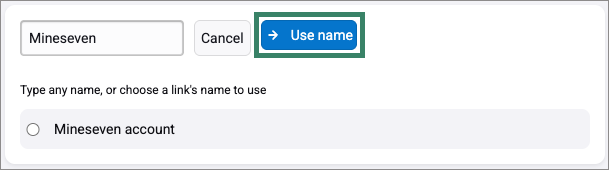
- In the confirmation box, click Apply to confirm.
Viewing merged child clients
Child clients are hidden by default in the Client Settings list. To see them:
- In Lifecycle Manager, hover over the settings icon in the upper right of the screen and click Account Settings.
- In the navigation menu, click Client Settings.
- Turn on the Show child clients filter.

Child clients appear inline beneath their parent. This view includes clients that were linked automatically when an integration first imported them, as well as clients you've linked manually.

Unlinking clients
Unlinking removes a child client's relationship with its parent. The child record isn't deleted, and after unlinking, the child client is restored to a standalone client in Lifecycle Manager.
Unlinking from Client Settings
Use this method to unlink clients that were linked automatically by an integration, or to unlink any child client from the account-wide list.
- On the Client Settings page, turn on the Show child clients filter so child clients are visible.
- Find the child client you want to unlink and click the Unlink button (
 ) in its row.
 - Review the confirmation and click Apply.
Unlinking from a client's Name & Links page
Use this method when you're already working with a specific parent client and want to unlink one of its linked records.
- On the parent client's profile page, click Settings > Merge Clients.
- Click the Unlink icon next to the client you want to unlink.
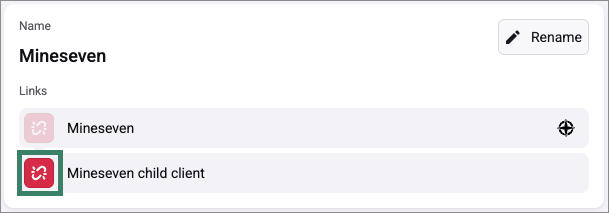
- Click Apply to confirm.
Unlinking is processed in the background. The affected clients are temporarily locked until the operation completes.
| Any questions? Reach out to our Lifecycle Manager support team by submitting a support ticket. |
| :sparkles: NEW :sparkles: Join our MSP Power-Ups - Free 15-minute micro-workshops + live Q&A with our Lifecycle Manager experts. Sign up here to reserve your spot. |