This article outlines how to resolve some commonly reported issues with Microsoft 365 data not syncing or displaying correctly in Lifecycle Insights.
Note
This article captures third-party steps and/or an interface that may have since been updated.
De-identified or random data in the user list
Issue
User names and emails appear as random strings or GUIDs in the Lifecycle Insights user list. This may also be reflected in other Microsoft tools that use usage report data.

Cause
By default, Microsoft reports conceal information such as usernames, groups, and sites. As Lifecycle Insights uses the same reporting API, this information is obfuscated unless this setting is changed in your Microsoft 365 admin center.
Resolution
Update the reporting privacy setting for each tenant:
- Sign in to your Microsoft 365 admin center.
- Go to Settings > Org Settings > Services > Reports.
- Clear the Display concealed user, group, and site names in all reports checkbox.
- Click Save.
After saving, run a manual sync in Lifecycle Insights or wait for the next scheduled sync.
For information on how to run a manual sync, refer to the Data Sync Manager article.
User-level MFA data missing or sync errors appearing
Issue
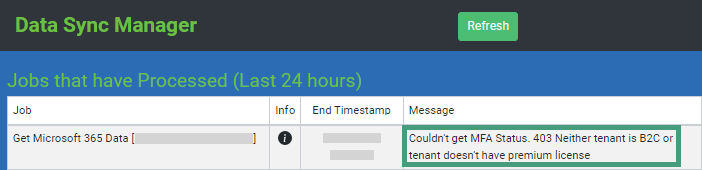
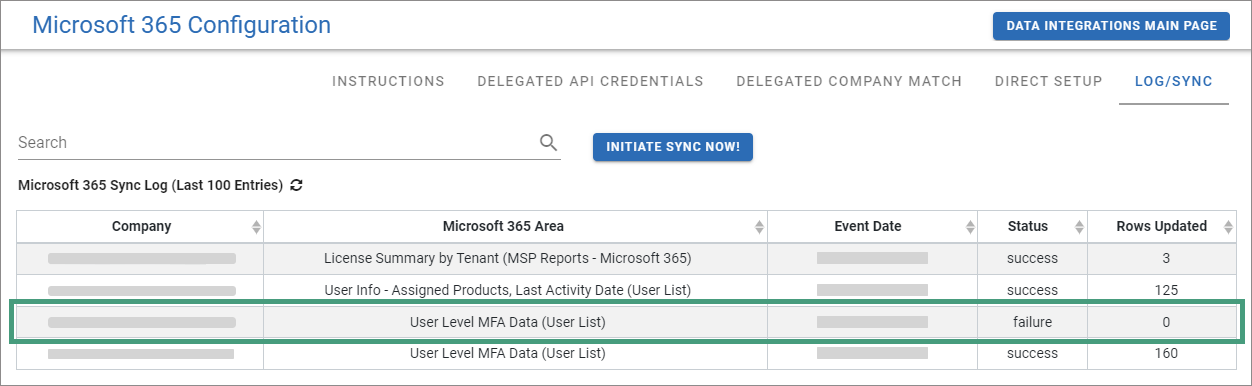
MFA related columns are missing from the User List, and errors appear during sync.
You may notice:
- The Microsoft 365 MFA Status and Authentication Methods columns are missing from the user list.
 - Errors in Data Sync Manager.
 - Errors in Administration > Integrations > Microsoft 365 > Log/Sync under User Level MFA Data.
Cause
Microsoft only returns user-level MFA data via API if:
- The tenant has a Microsoft Entra ID P1 or P2 (Formerly Azure AD Premium P1/P2) license.
- Conditional Access Policies are implemented.
If either condition isn't met, Microsoft blocks this data from being returned.
Resolution
Confirm that the tenant:
- Has Azure AD Premium P1 or P2 licensing.
- Has enabled Conditional Access Policies.
After meeting these requirements, Microsoft may take up to one week to begin returning MFA data.
Old or stale data showing in the user list
Issue
Data in the User List appears outdated. For example, the report may show a Last Refresh date from several days in the past.

Cause
Microsoft's reporting APIs do not return real-time data. Returned data is typically 1-7 days old. This applies across all Microsoft reporting tools.
Resolution
No action is required. Lifecycle Insights displays the most recent data available through Microsoft's API.
Note
Any questions? Reach out to our Lifecycle Insights support team by submitting a support ticket.